guide
PDF Splitter Guide: Uses, Steps, and Alternatives
· pdf · split pdf · guide · how to
When to use PDF Splitter, step-by-step instructions, use cases, and alternatives — plus links to related Toolkase tools.
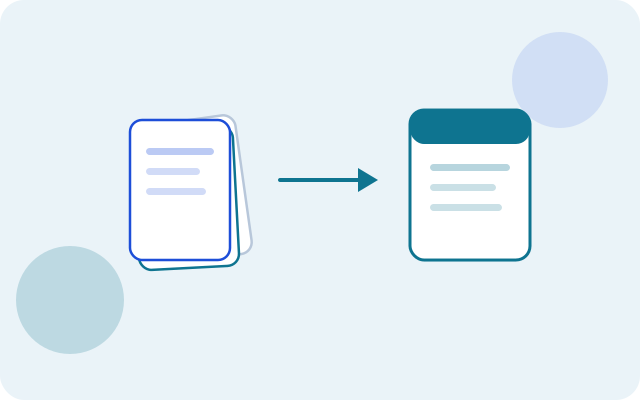
Related tool: PDF Splitter — Extract pages or split a PDF into separate files.
Open toolThis practical guide covers when to use PDF Splitter, how to get a good result, and what to try next in the Toolkase toolbox.
What PDF Splitter is for
Extract pages or split a PDF into separate files.
Split a PDF privately in your browser. Extract a page range into a new file, or save every page as its own PDF — nothing is uploaded.
Primary searches this guide supports include split pdf and extract pdf pages.
Step-by-step
- Choose a PDF from your device.
- Set a from/to page range, or choose split into single pages.
- Download the extracted PDF(s).
Open the live tool anytime: PDF Splitter.
Good use cases
- Preparing packets for email without a desktop Acrobat license
- Cleaning scans before sharing with a client
- Extracting or rotating pages from a long statement
- Building a single PDF from images or multiple files
Alternatives (and when to pick them)
- Desktop apps — best for heavy daily editing with lots of files
- OS built-ins — fine for occasional jobs when you already know the workflow
- Upload-based websites — convenient, but avoid for sensitive inputs
- Toolkase browser tools — fast, private-by-default for one-off and recurring light work
Tips for private PDF work
- Prefer desktop browsers for large files; phones can run out of memory.
- Keep originals until you confirm the download looks right.
- Chain tools when needed — for example split first, then merge, or rotate before exporting images.
- Treat upload-based PDF sites as a last resort for IDs, contracts, and tax documents.
Pair with related Toolkase tools
FAQ-driven decisions
If you only remember one thing: for file tools, prefer no-upload processing. Then use PDF Splitter when the job matches.
FAQ
- Do you upload my PDF?
- No. Splitting runs entirely in your browser with pdf-lib.
- Can I extract non-contiguous pages?
- This version extracts a continuous range. Reorder/delete tools will cover more page ops later.
- Does Toolkase upload my files when I use PDF Splitter?
- No. PDF Splitter is privacy-critical: processing stays on your device and files are not uploaded to Toolkase servers for this workflow.
- Is PDF Splitter free on Toolkase?
- Yes. PDF Splitter runs in your browser with no account required.
- Do I need to install software to use PDF Splitter?
- No. Open the tool page in a modern browser and work there — nothing to install.