guide
How to Combine Multiple PDFs Into One File (Windows, Mac & Browser)
· pdf · merge pdf · combine pdf · how to
Step-by-step ways to merge PDFs on Mac Preview, Windows, desktop apps, and a private browser tool that does not upload your files.
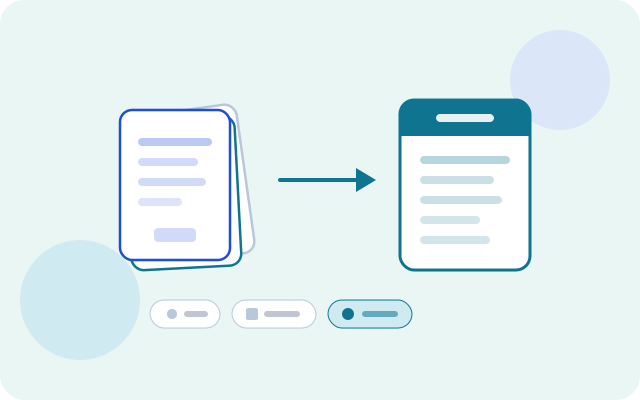
Related tool: PDF Merger — Combine multiple PDFs into one file in your browser.
Open toolCombining PDFs is one of those tasks that should take a minute — until you hit the wrong tool and accidentally upload a contract to a random website.
This guide covers the practical options: Mac, Windows, desktop apps, and a private browser merger when you want a website-style workflow without the upload.
What “combine PDFs” actually does
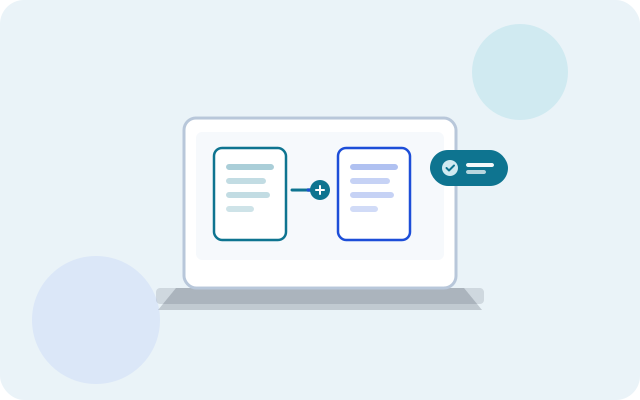
Merging (or combining) PDFs stitches pages from two or more files into a single PDF, in an order you choose. It is different from:
- Converting images to PDF — start from JPG/PNG instead (see Images to PDF)
- Splitting — pull pages out of a PDF (PDF Splitter)
- Reordering — rearrange pages inside an existing file (PDF Reorder)
Fastest private option in a browser
If you want a simple web UI and you care about privacy:
- Open Toolkase PDF Merger.
- Add every PDF you need.
- Drag to set the order.
- Merge and download the combined file.
Processing runs in your browser — files are not uploaded to Toolkase for merging. For the privacy-focused walkthrough, see merge PDF without uploading.
How to combine PDFs on Mac (Preview)
Apple’s Preview can merge PDFs without extra software:
- Open the first PDF in Preview.
- Show thumbnails (View → Thumbnails).
- Drag other PDF files (or their thumbnail pages) into the thumbnail sidebar in the order you want.
- File → Export as PDF… (or Save) to write the combined document.
Preview keeps everything on your Mac. It is an excellent default for occasional merges.
How to combine PDFs on Windows
Windows does not include a single “Merge PDF” button in File Explorer, but you still have solid local options:
- Microsoft Print to PDF / Office — open files in an app that can print all pages, then print to “Microsoft Print to PDF” when you only need a quick flatten (quality and bookmarks vary).
- Installed readers — Adobe Acrobat, Foxit, and similar apps usually offer Combine or Merge under a Tools menu.
- Browser-local tools — use Toolkase PDF Merger when you do not want to install software and do not want uploads.
Avoid random “free merger” downloads from unfamiliar sites; stick to known apps or in-browser tools you can verify.
Desktop apps worth knowing
Choose a desktop app when you merge often or need advanced page surgery:
- Adobe Acrobat — polished combine workflow; paid for full features
- PDF Arranger — popular open-source option for rearrange/merge on some platforms
- Command-line tools (qpdf, pdfcpu, pdfunite) — great for power users and scripts
Desktop tools keep files local by default. They trade convenience for installation and updates.
Which method should you pick?
- Sensitive docs, no install → Browser PDF Merger (no upload)
- On a Mac already → Preview
- Heavy weekly PDF editing → Desktop Acrobat / PDF Arranger
- Only have image scans → Images to PDF, then merge if needed
- Need pages from a huge file first → Split, then merge
Common mistakes when combining PDFs
- Wrong order — rename files
01,02,03before importing so sorting is obvious. - Password-protected inputs — unlock or remove the password locally before merge; try PDF Password when appropriate.
- Huge phone merges — large scans can exhaust mobile memory; merge on desktop or in smaller batches.
- Uploading by habit — if the file is confidential, skip cloud mergers. Read Is it safe to merge PDFs online?.
Combine your PDFs next
For a free, private, no-account path, open PDF Merger, drop in your files, and download one combined document — processed on your device.
FAQ
- How do I combine multiple PDF files into one?
- On Mac, use Preview’s thumbnail sidebar to drag PDFs together and export. On Windows, use a trusted desktop reader or a browser-local tool. With Toolkase PDF Merger, add files, reorder, and download the merged PDF without uploading.
- Can I merge PDFs for free?
- Yes. Preview on Mac is free, and Toolkase PDF Merger is free in the browser with no account. Some advanced desktop features may require paid software.
- How do I merge PDFs without Adobe Acrobat?
- Use Preview on Mac, a free desktop alternative, or a browser-local merger such as Toolkase that combines files on your device.